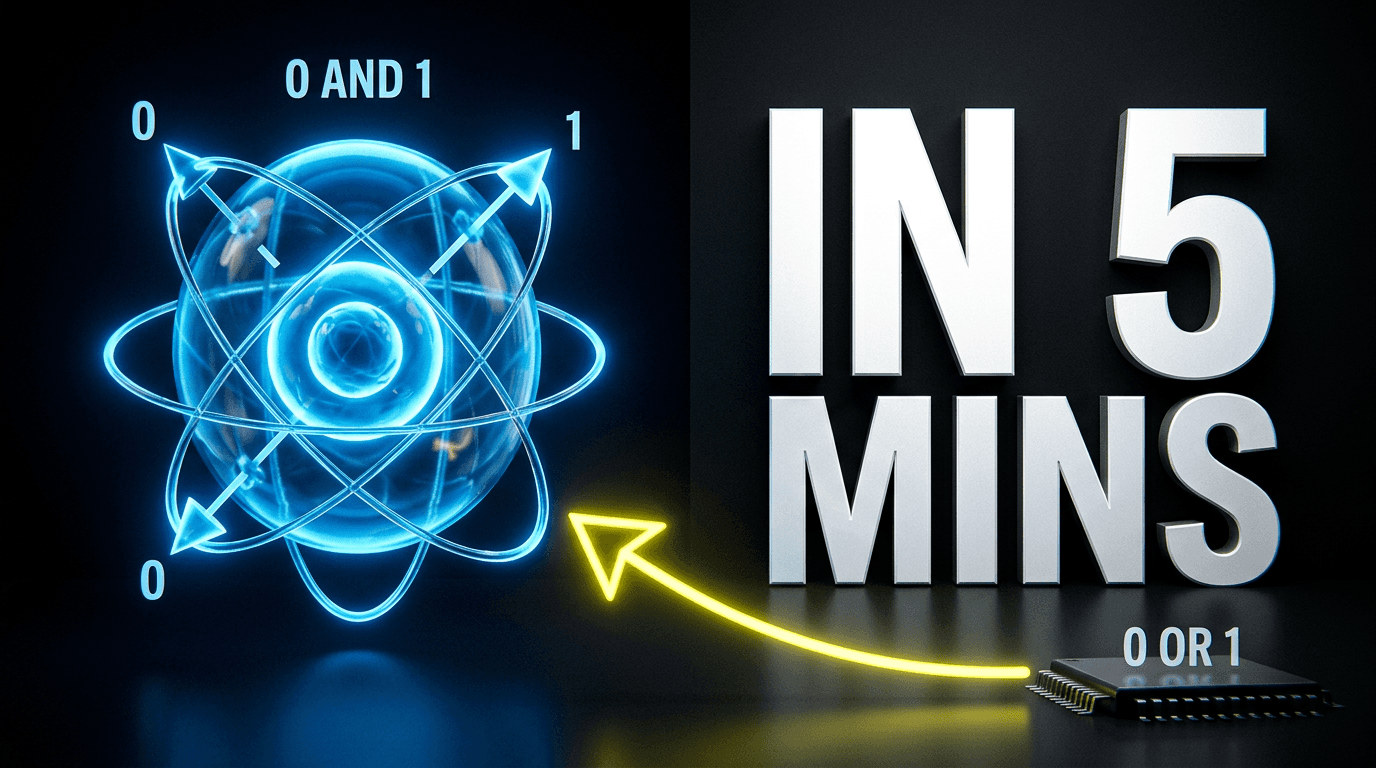
Quantum Computing: Explained in 5 Minutes

Top 10 Digital Courses to Level Up Your Career
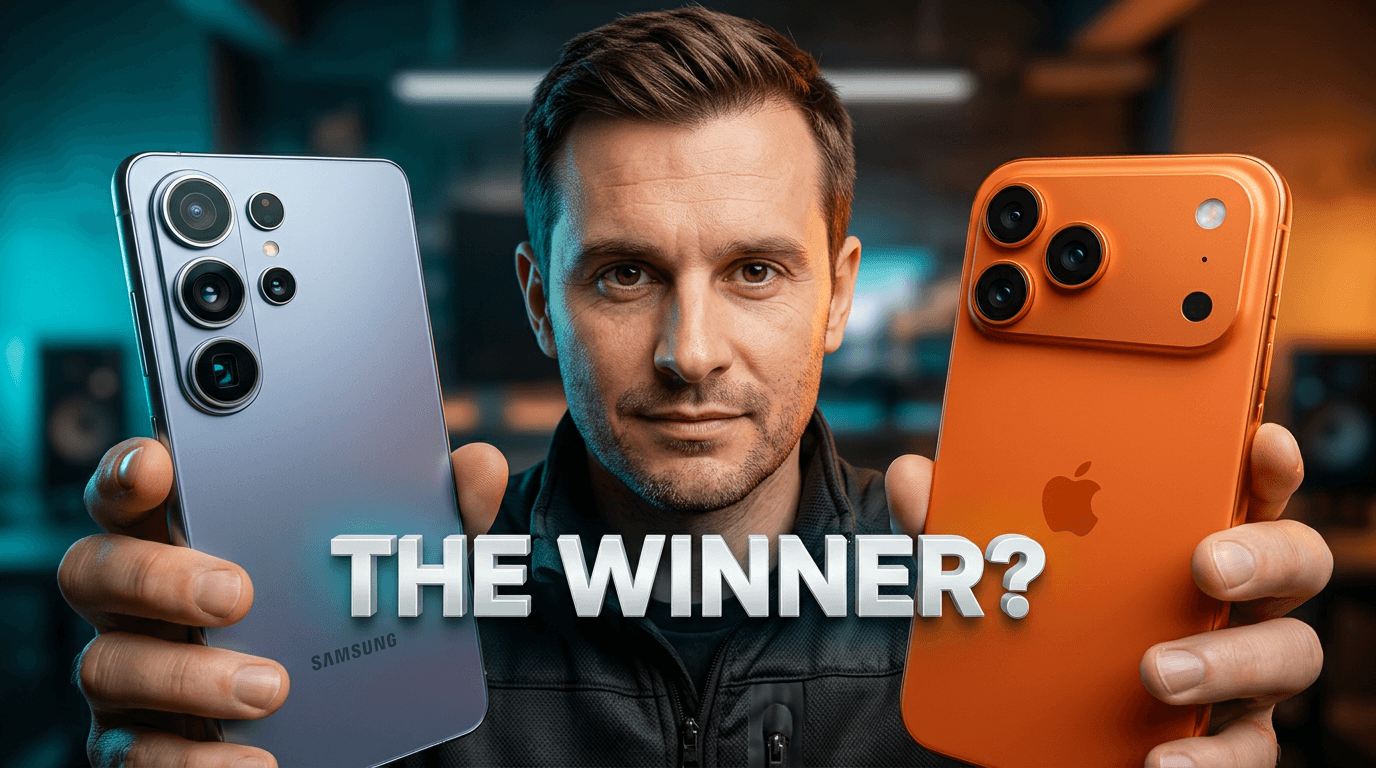
Samsung Galaxy S26 Ultra vs iPhone 17 Pro Max - The Ultimate Showdown!

Making the World's BIGGEST Gummy Bear

I ESCAPED GRANNY'S HOTEL | GRANNY 5

Free Fire Max: Live Gameplay & Pro Tips!

The Government Minister Who Erased Himself
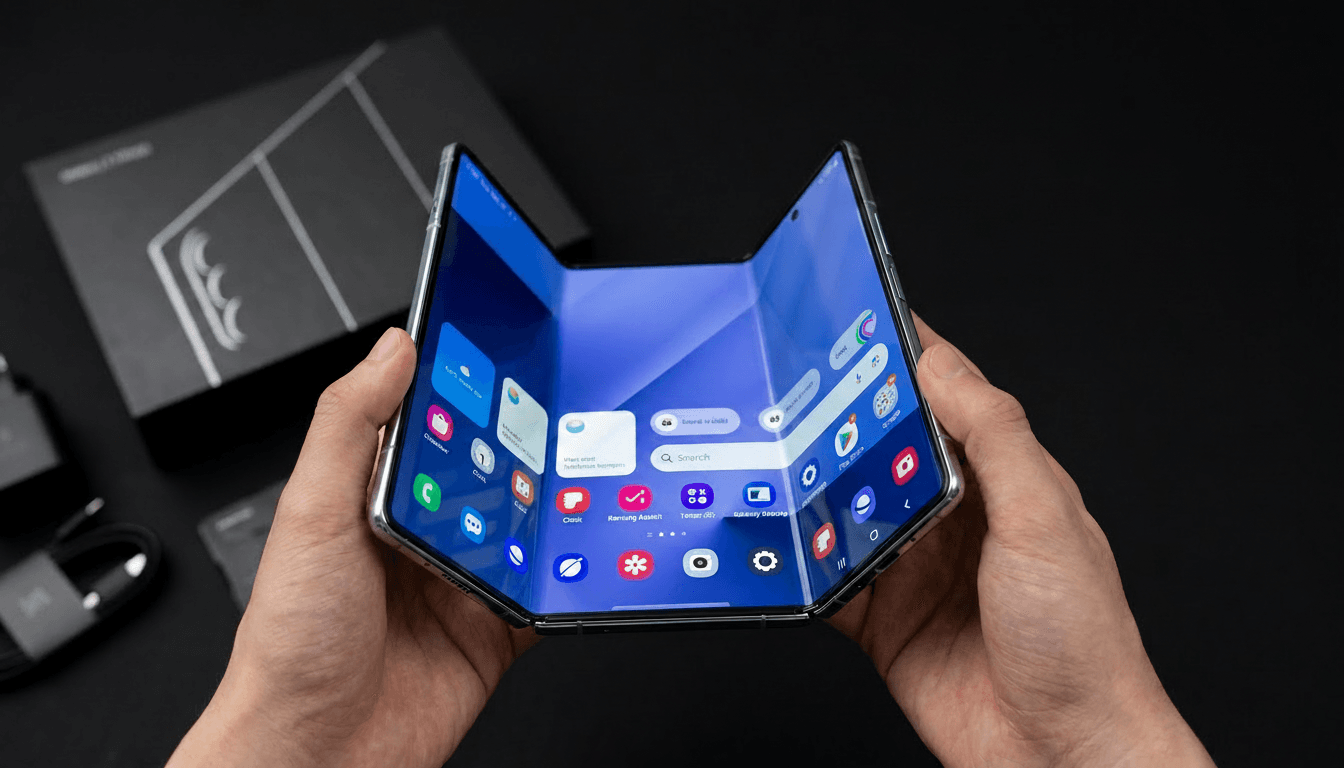
This Phone Folds TWICE: Samsung Galaxy Z TriFold

Argentina vs Algeria: Who Wins the Ultimate Football Clash?

STOP PROVING THEM RIGHT.
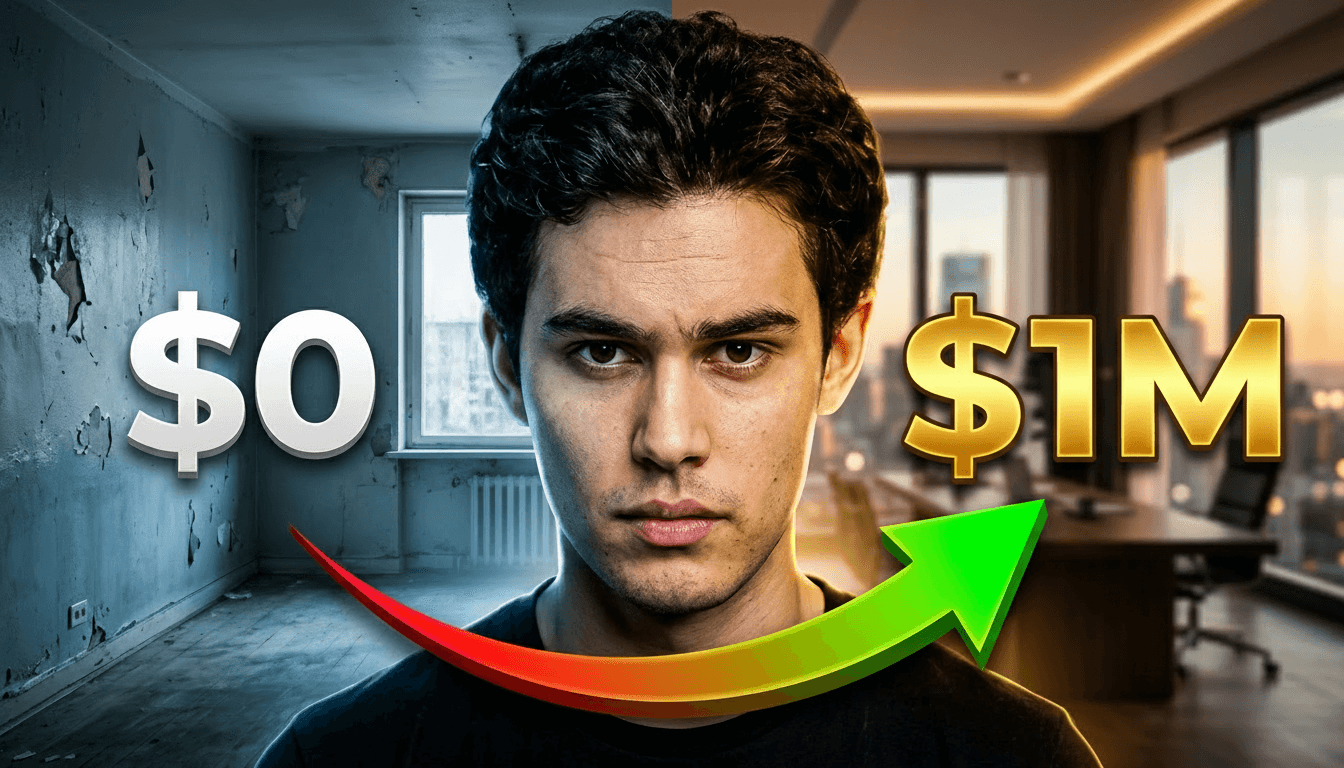
How I Built a $1M Business

$1 vs $1,000 Coffee

Traveling to Egypt: Exploring the World's Oldest Country

Why The Next Super power will not be a country
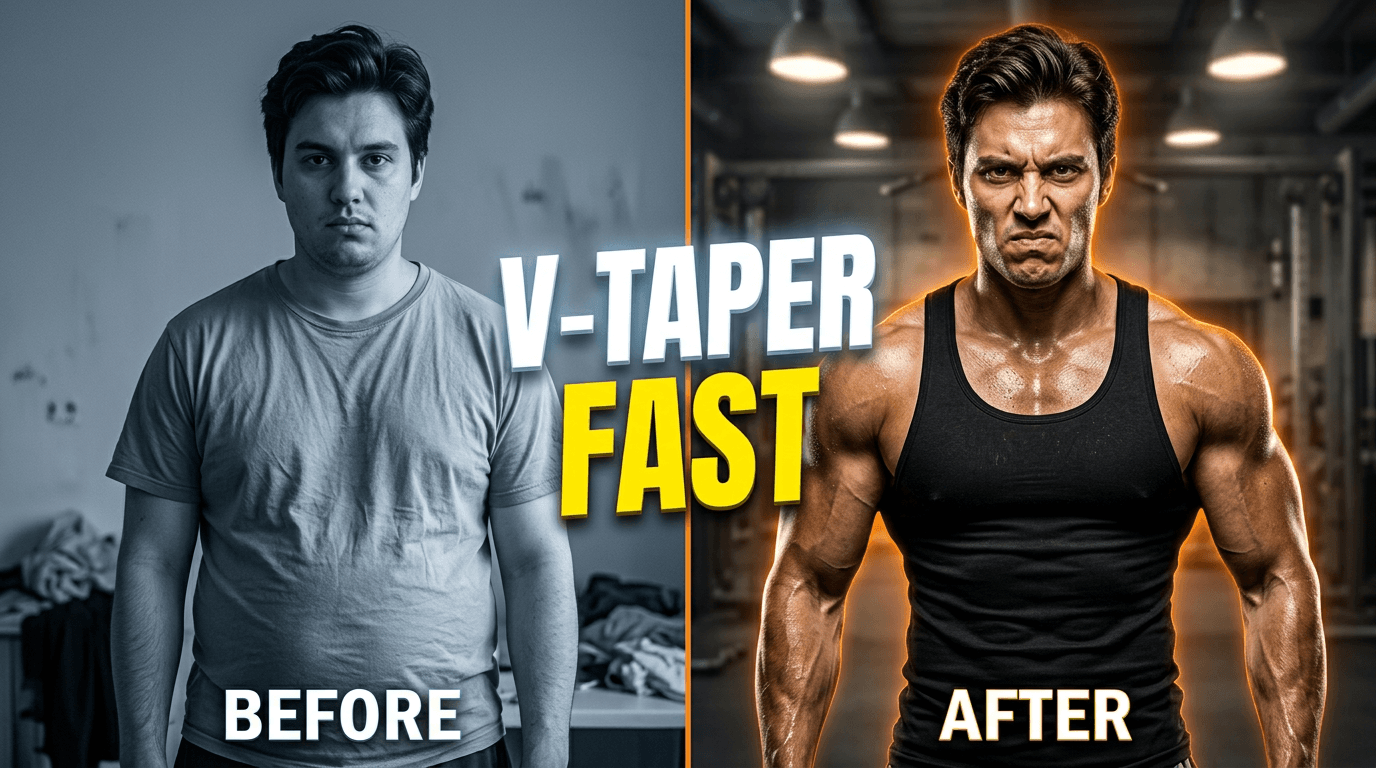
How To Build the PERFECT V-TAPER Physique… FAST
Quantum Computing: Explained in 5 Minutes
Top 10 Digital Courses to Level Up Your Career
Samsung Galaxy S26 Ultra vs iPhone 17 Pro Max - The Ultimate Showdown!
Making the World's BIGGEST Gummy Bear
I ESCAPED GRANNY'S HOTEL | GRANNY 5
Free Fire Max: Live Gameplay & Pro Tips!
The Government Minister Who Erased Himself
This Phone Folds TWICE: Samsung Galaxy Z TriFold
Argentina vs Algeria: Who Wins the Ultimate Football Clash?
STOP PROVING THEM RIGHT.
How I Built a $1M Business
$1 vs $1,000 Coffee
Traveling to Egypt: Exploring the World's Oldest Country
Why The Next Super power will not be a country
How To Build the PERFECT V-TAPER Physique… FAST
Quantum Computing: Explained in 5 Minutes
Top 10 Digital Courses to Level Up Your Career
Samsung Galaxy S26 Ultra vs iPhone 17 Pro Max - The Ultimate Showdown!
Making the World's BIGGEST Gummy Bear
I ESCAPED GRANNY'S HOTEL | GRANNY 5
Free Fire Max: Live Gameplay & Pro Tips!
The Government Minister Who Erased Himself
This Phone Folds TWICE: Samsung Galaxy Z TriFold
Argentina vs Algeria: Who Wins the Ultimate Football Clash?
STOP PROVING THEM RIGHT.
How I Built a $1M Business
$1 vs $1,000 Coffee
Traveling to Egypt: Exploring the World's Oldest Country
Why The Next Super power will not be a country
How To Build the PERFECT V-TAPER Physique… FAST
Quantum Computing: Explained in 5 Minutes
Top 10 Digital Courses to Level Up Your Career
Samsung Galaxy S26 Ultra vs iPhone 17 Pro Max - The Ultimate Showdown!
Making the World's BIGGEST Gummy Bear
I ESCAPED GRANNY'S HOTEL | GRANNY 5
Free Fire Max: Live Gameplay & Pro Tips!
The Government Minister Who Erased Himself
This Phone Folds TWICE: Samsung Galaxy Z TriFold
Argentina vs Algeria: Who Wins the Ultimate Football Clash?
STOP PROVING THEM RIGHT.
How I Built a $1M Business
$1 vs $1,000 Coffee
Traveling to Egypt: Exploring the World's Oldest Country
Why The Next Super power will not be a country
How To Build the PERFECT V-TAPER Physique… FAST
Why The Next Super power will not be a country
Top 10 Digital Courses to Level Up Your Career
$1 vs $1,000 Coffee
STOP PROVING THEM RIGHT.
Making the World's BIGGEST Gummy Bear
How I Built a $1M Business
The Government Minister Who Erased Himself
Quantum Computing: Explained in 5 Minutes
How To Build the PERFECT V-TAPER Physique… FAST
Traveling to Egypt: Exploring the World's Oldest Country
Samsung Galaxy S26 Ultra vs iPhone 17 Pro Max - The Ultimate Showdown!
I ESCAPED GRANNY'S HOTEL | GRANNY 5
Free Fire Max: Live Gameplay & Pro Tips!
This Phone Folds TWICE: Samsung Galaxy Z TriFold
Argentina vs Algeria: Who Wins the Ultimate Football Clash?
Why The Next Super power will not be a country
Top 10 Digital Courses to Level Up Your Career
$1 vs $1,000 Coffee
STOP PROVING THEM RIGHT.
Making the World's BIGGEST Gummy Bear
How I Built a $1M Business
The Government Minister Who Erased Himself
Quantum Computing: Explained in 5 Minutes
How To Build the PERFECT V-TAPER Physique… FAST
Traveling to Egypt: Exploring the World's Oldest Country
Samsung Galaxy S26 Ultra vs iPhone 17 Pro Max - The Ultimate Showdown!
I ESCAPED GRANNY'S HOTEL | GRANNY 5
Free Fire Max: Live Gameplay & Pro Tips!
This Phone Folds TWICE: Samsung Galaxy Z TriFold
Argentina vs Algeria: Who Wins the Ultimate Football Clash?
Why The Next Super power will not be a country
Top 10 Digital Courses to Level Up Your Career
$1 vs $1,000 Coffee
STOP PROVING THEM RIGHT.
Making the World's BIGGEST Gummy Bear
How I Built a $1M Business
The Government Minister Who Erased Himself
Quantum Computing: Explained in 5 Minutes
How To Build the PERFECT V-TAPER Physique… FAST
Traveling to Egypt: Exploring the World's Oldest Country
Samsung Galaxy S26 Ultra vs iPhone 17 Pro Max - The Ultimate Showdown!
I ESCAPED GRANNY'S HOTEL | GRANNY 5
Free Fire Max: Live Gameplay & Pro Tips!
This Phone Folds TWICE: Samsung Galaxy Z TriFold
Argentina vs Algeria: Who Wins the Ultimate Football Clash?
Why The Next Super power will not be a country
Top 10 Digital Courses to Level Up Your Career
$1 vs $1,000 Coffee
STOP PROVING THEM RIGHT.
Making the World's BIGGEST Gummy Bear
How I Built a $1M Business
The Government Minister Who Erased Himself
Quantum Computing: Explained in 5 Minutes
How To Build the PERFECT V-TAPER Physique… FAST
Traveling to Egypt: Exploring the World's Oldest Country
Samsung Galaxy S26 Ultra vs iPhone 17 Pro Max - The Ultimate Showdown!
I ESCAPED GRANNY'S HOTEL | GRANNY 5
Free Fire Max: Live Gameplay & Pro Tips!
This Phone Folds TWICE: Samsung Galaxy Z TriFold
Argentina vs Algeria: Who Wins the Ultimate Football Clash?
Your Face Your Creative Direction.
One Visual Concept.
Use a photo of yourself as a visual reference when you want to appear in a scene that was not part of an actual photoshoot. Describe the setting and the role you want to play; GenLayers uses your brief and reference photo to build a personalized thumbnail concept. Facial similarity and small details can vary, so review the result before publishing.
Samsung Galaxy S26 Ultra vs iPhone 17 Pro Max
confident face. Left side: holding a silver Samsung Galaxy S26 Ultra smartphone. Right side: holding an orange iPhone 17 Pro Max. Center: bold text reading 'THE WINNER?

Create, Refine, Remix.
A More Complete AI YouTube Thumbnail Maker Workflow.

Teleport Any Thumbnail with
AI Background Swap
One shoot, endless destinations. GenLayers instantly swaps in stunning backgrounds — from Paris to Bali to Tokyo — while keeping lighting, shadows, and edges perfectly natural.
When Words Aren’t Enough
Draw Your Idea.
Use a rough sketch when layout is easier to show than to explain. Mark where the main subject should sit, leave space for the headline, and indicate any objects, arrows, or visual cues that matter to the story.
how To Get Rich in 2026


Fair Pricing. No Monthly Subscriptions.
Pay once, use whenever. Studio generations for20and AI edits for10
🎁 New users get 200 free credits on sign up.
Frequently Asked Questions
Everything you need to know about creating viral thumbnails with GenLayers.
GenLayers is an AI YouTube Thumbnail Maker for creators. It helps turn a video idea into a 16:9 thumbnail concept, use a sketch or reference image as visual guidance, personalize the subject, and refine the result with focused AI editing tools. It is designed around the thumbnail workflow rather than general-purpose image creation.
Enter your video title and describe the visual direction you want. Add a sketch or reference image if you have one, then generate a concept. Review the composition, subject, and headline, and use the available editing controls to refine the result.
Yes. A sketch or reference image can guide the composition, subject placement, objects, and overall visual direction. The generated result may interpret the reference rather than reproduce every detail exactly, so check the output and make any necessary adjustments.
Yes. You can upload a photo that you own or have permission to use as a face reference. The result can vary depending on photo quality and the instructions you provide. Review facial details and make sure you have the necessary rights before publishing.
GenLayers provides Face Swap, Smart Typography, Background Swap, and AI Fine-Tune Editing. These controls help you personalize the subject, adjust headline presentation, change the setting, or request a more specific edit in natural language. AI-generated text can need correction, so proofread every headline before publishing.
A Studio Generation uses 20 credits and an AI Fine-Tune Edit uses 10 credits. Both actions use the same balance. Starter includes 600 credits valid for 2 months, Creator includes 1,000 credits valid for 4 months, and Pro includes 2,000 credits valid for 6 months, according to the current pricing display. The maximum operation counts assume you spend the entire pack on only one action type.
The current sign-up offer lists 200 introductory promotional credits for new accounts. These promotional credits have no cash value and cannot be transferred or exchanged for cash. Offers and terms can change, so check the sign-up screen for the current details.
The current paid credit packs list a Commercial Usage License. Review the applicable license terms, and make sure you have the rights or permissions for any photos, logos, or other third-party materials you upload or include in your designs.
No. GenLayers helps you create and refine thumbnail concepts, but no thumbnail tool can guarantee a specific number of views or click-through rate. Performance also depends on the video topic, title, audience, competition, and the content itself. Compare concepts with your own audience data to learn what works for your channel.
Still have questions?
Join our creator community to get support, share feedback, and meet fellow thumbnail designers.
Ready to Turn Your NextVideo Idea Into a Thumbnail?
Bring your video idea, guide the composition with a visual reference, and refine the details with focused AI editing. Start building your next thumbnail concept in GenLayers.
Create Your Thumbnail